Account access and email verification
Sign up, verify your email, sign in, and recover or change your password.
Use an email address you can access. Opalefy sends account verification and password reset links to that address.
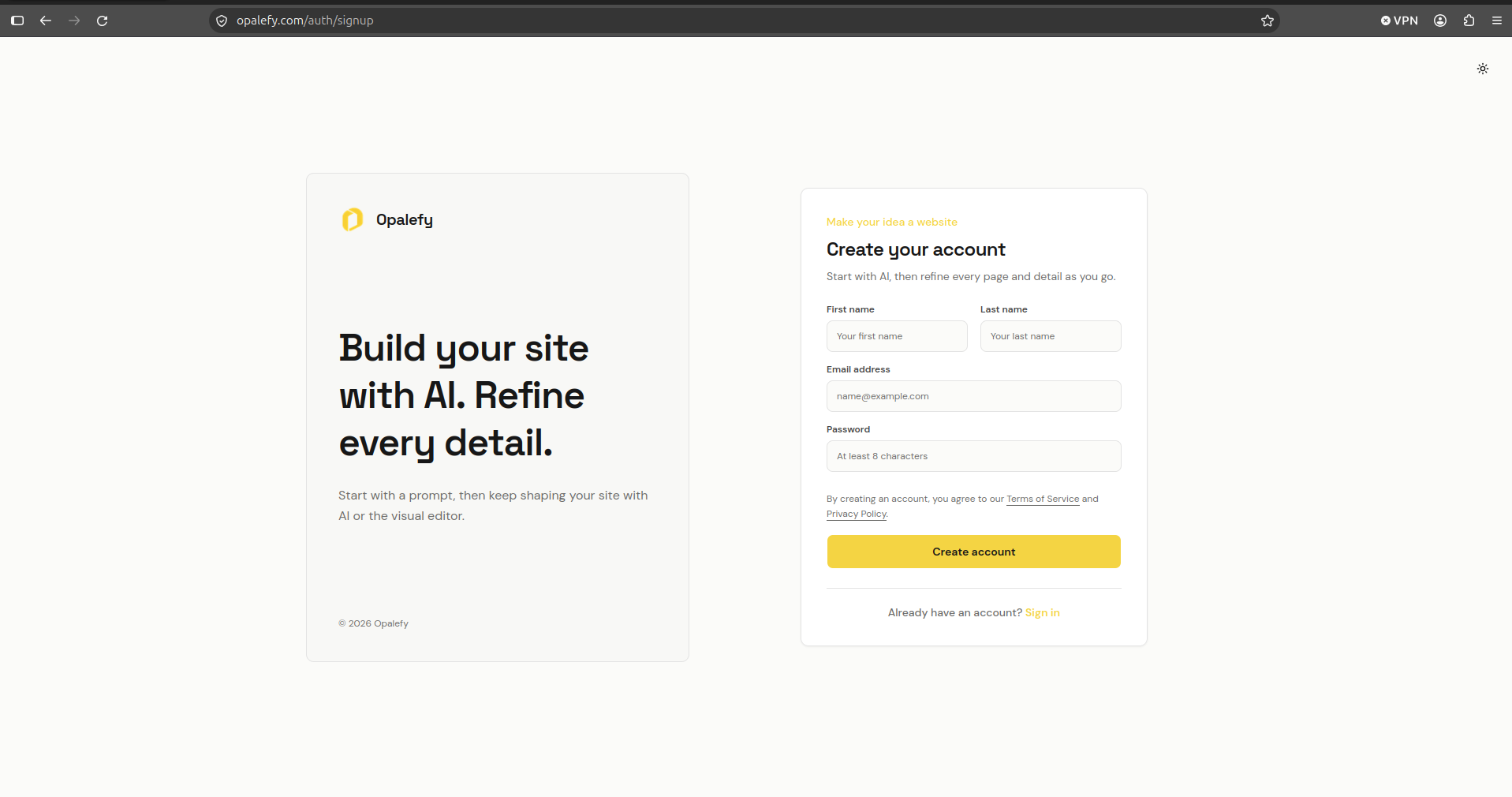
Create an account
- Open
/auth/signup. - Enter your first name, last name, and email address. First and last names each need at least two characters.
- Enter a password with at least eight characters.
- Submit the form and wait for Check your email.
- Open the verification email and follow its link.
Signup creates a personal workspace and assigns you ownership. The default workspace starts on the Free plan when the Free package is configured on the server.
Verify your email
The verification link opens /auth/verify-email with a token in the URL. Verification runs automatically; you do not need to paste a code.
The token expires after 24 hours and is cleared after successful verification. When the page shows Email Verified, choose Continue to Opalefy to go to login.
If verification fails:
- Open the complete link from the email, including its query string.
- Check whether the link is older than 24 hours.
- If you already verified the account, return to login rather than reusing the link.
- Check spam or junk mail if no email arrived.
There is no resend-verification control on the current verification screen. Its Create New Account button is not a resend action; signing up again with an existing account can be rejected. Contact the service operator if you need a replacement link.
Verification records that you own the address. The current email/password login implementation checks credentials and account activity; it does not itself enforce email verification as a login requirement.
Sign in
- Open
/auth/login. - Enter your account email and password.
- Submit the form.
After a normal login you return to the application. A valid return destination may take you back to the protected page you originally opened.
An Invalid email or password response does not tell you which field was wrong. Check both before resetting the password. A deactivated account cannot sign in; changing its password does not reactivate it.
Reset a forgotten password
- Open
/auth/forgot-passwordfrom the login screen. - Enter the email address used for the account.
- Submit the request and open the reset email.
- Follow the link to
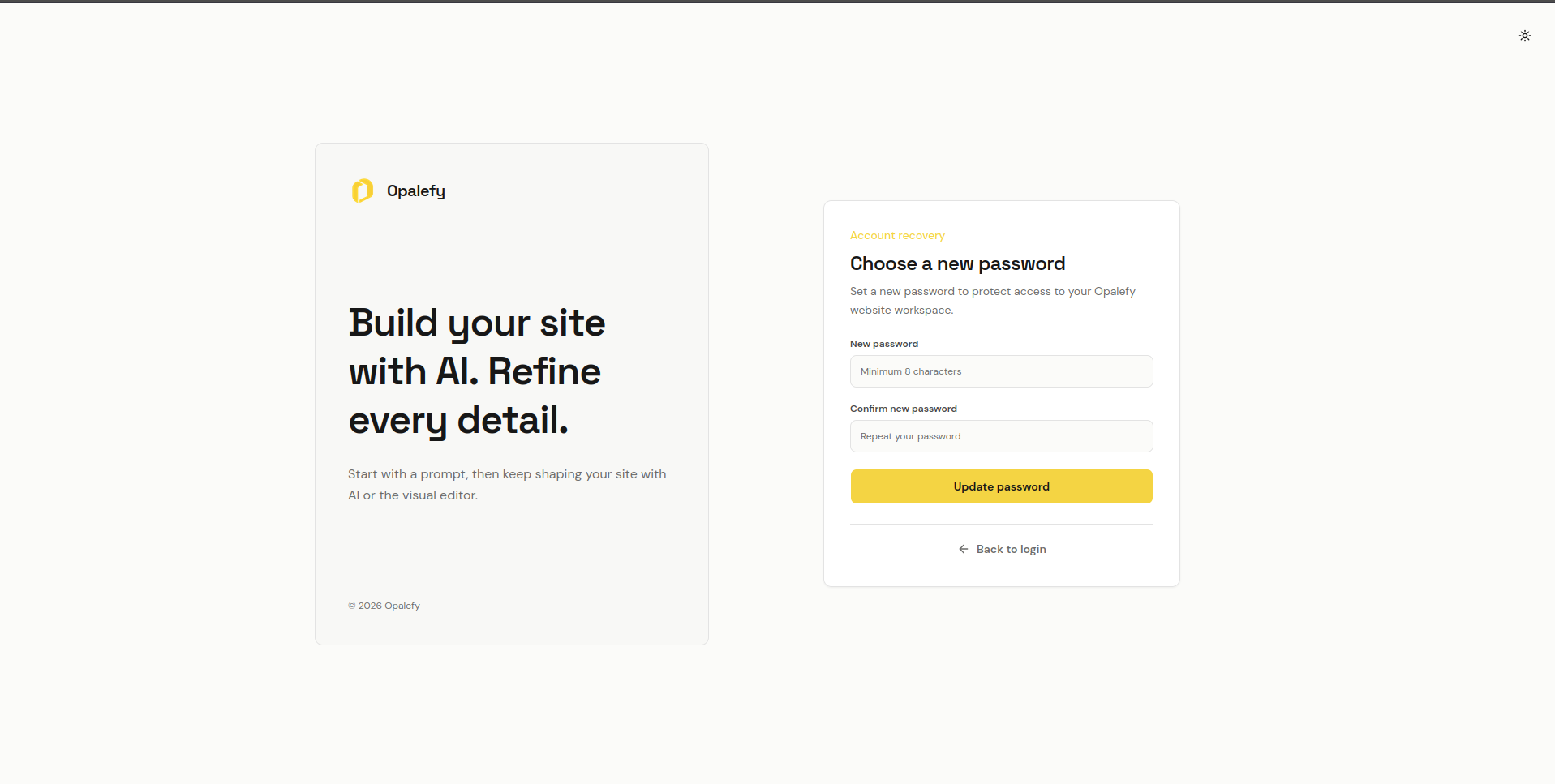
/auth/reset-password. - Enter a new password of at least eight characters and enter the same value in the confirmation field.
- Submit, then sign in with the new password.
Reset links expire after 10 minutes. Request a new link if the page reports an invalid or expired token. Requesting another reset replaces the previous reset token, so use the latest email.
The request screen does not confirm whether an account exists for an address. A success message is not proof that a reset email was delivered.
Change a password you know
Open /profile and use the password change form. Supply your current password and the new password, then confirm the new value as requested.
The server verifies your current password before saving. Changing it clears outstanding reset tokens, but the current implementation leaves existing sessions active. Do not treat a password change as a sign-out-all-devices control.
Once you can sign in, continue with