Create a website
Choose a category, check a subdomain, and create a website in the right organization.
Website creation is a two-step setup: Category, then Website details. Plan checkout and template selection are separate workflows.
Before you start
- Sign in and open
/apps. - Select the organization that should own the website.
- Check that your role allows website creation.
- Check that the organization has space for another website.
The default website limits are one on Free, three on Personal Pro, and twenty on Teams. The creation screen checks the organization's configured limit, not just the plan name.
Step 1: Choose a category
- Open
/apps/createfrom the website creation action. - Select a category from the options loaded by the app.
- Continue to the details screen.
Selecting a category does not apply a full-page template. You can choose a template later in Studio.
Step 2: Enter website details
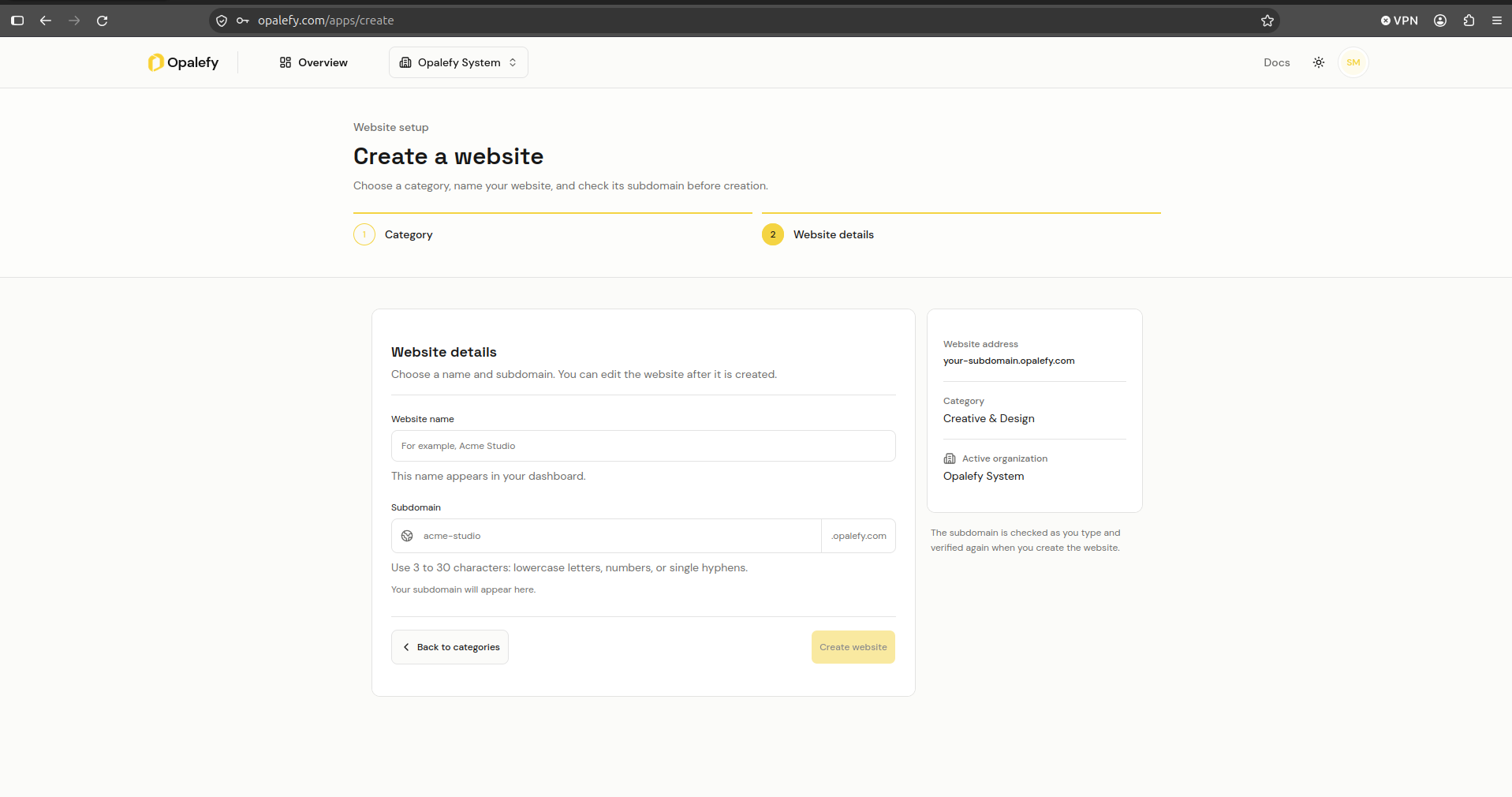
- Enter a Website name with at least two characters. This is the name shown in your dashboard.
- Enter a Subdomain.
- Wait for the availability result.
- Review the website address, category, and Active organization in the summary.
- Choose Create website.
Subdomain rules
Use 3 to 30 characters:
- Lowercase letters and numbers.
- Single hyphens between groups of letters or numbers.
- No spaces, leading hyphen, or trailing hyphen.
For example, acme-studio is valid. The input lowercases text and replaces spaces with hyphens, but you should still review the resulting address.
The app checks availability as you type and checks again when you submit. Available is not a reservation: another creation request can take the name before yours finishes.
A reserved name cannot be used even if no website currently has it. A taken name is already in use. Choose a different subdomain in either case.
After creation
Successful creation opens the website in Studio. Add or edit page content there, then publish when ready. See Studio and Page templates.
The website is ready for setup, not automatically live. Check its status in the 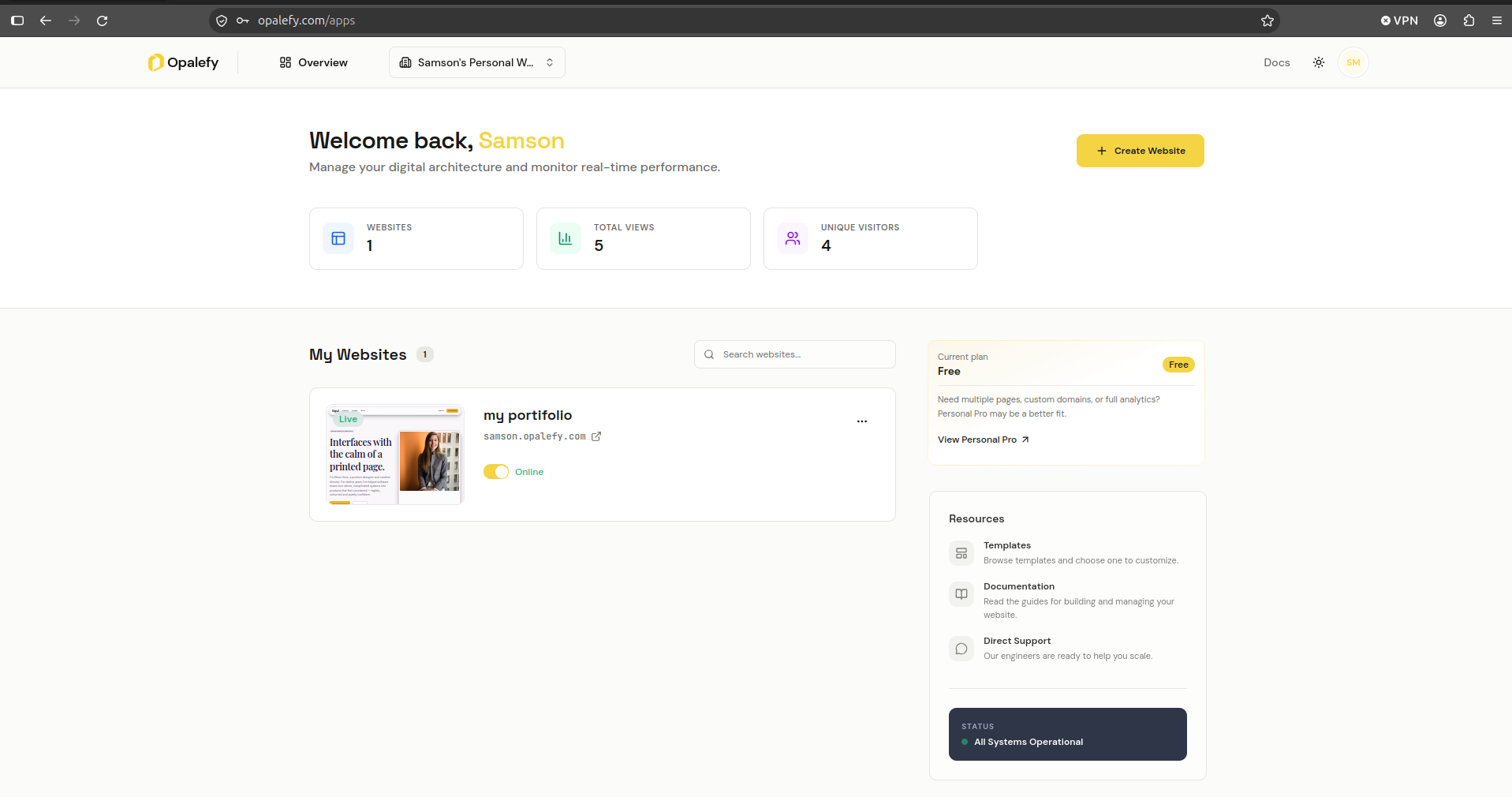 .
If you cannot continue
| Message or state | What to do |
|---|---|
| Website setup could not load | Use Retry to reload organizations, categories, and websites. |
| Website creation is unavailable | Select an organization or ask its owner for creation permission. |
| Website limit reached | Change the organization's plan or use an organization with available capacity. |
| Availability could not be checked | Use Retry check. Creation stays unavailable until the check succeeds. |
| Creation failed after availability passed | Read the error, recheck the subdomain, and try again. |
You can change the website name and subdomain later in Settings. Changing an address can affect links you have already shared.